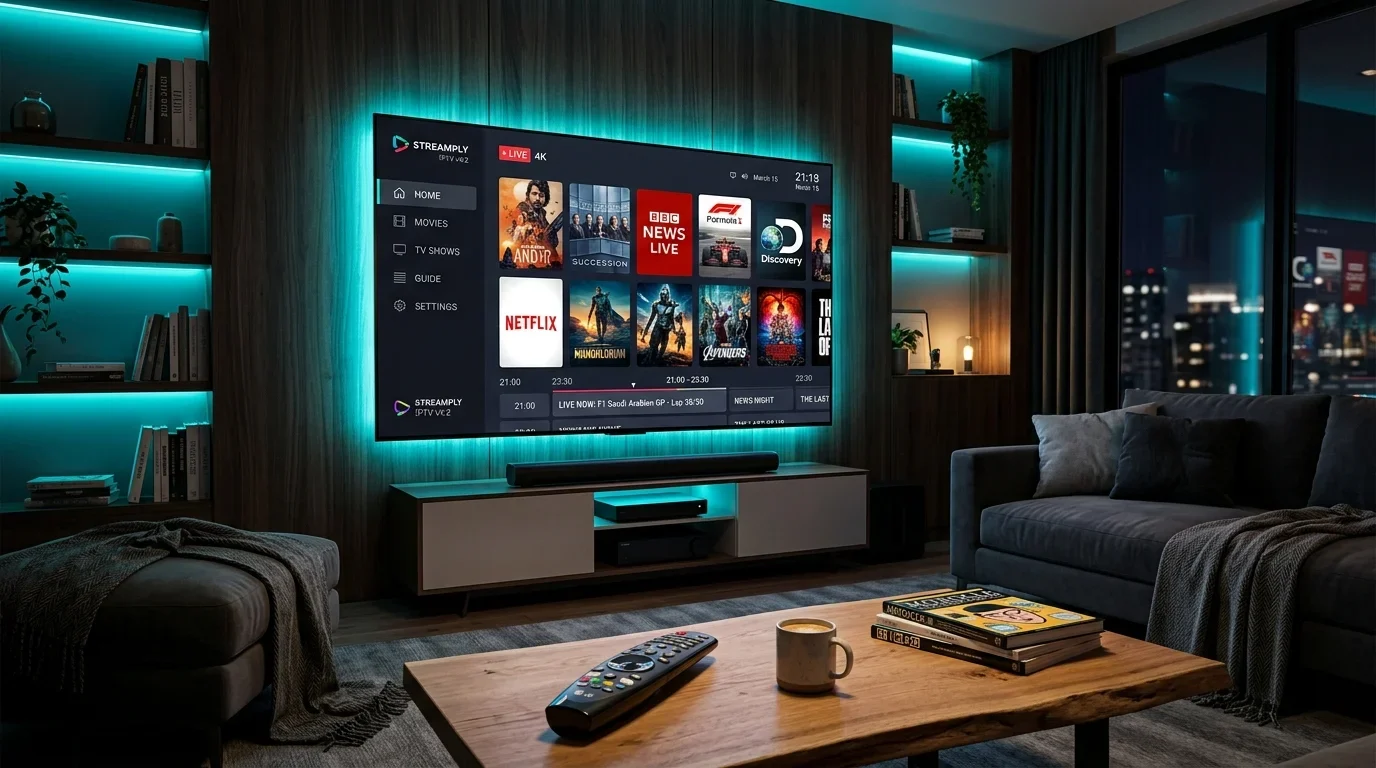
How to Setup & Watch IPTV on Apple TV 4K (tvOS): Complete 2026 App Configuration Guide
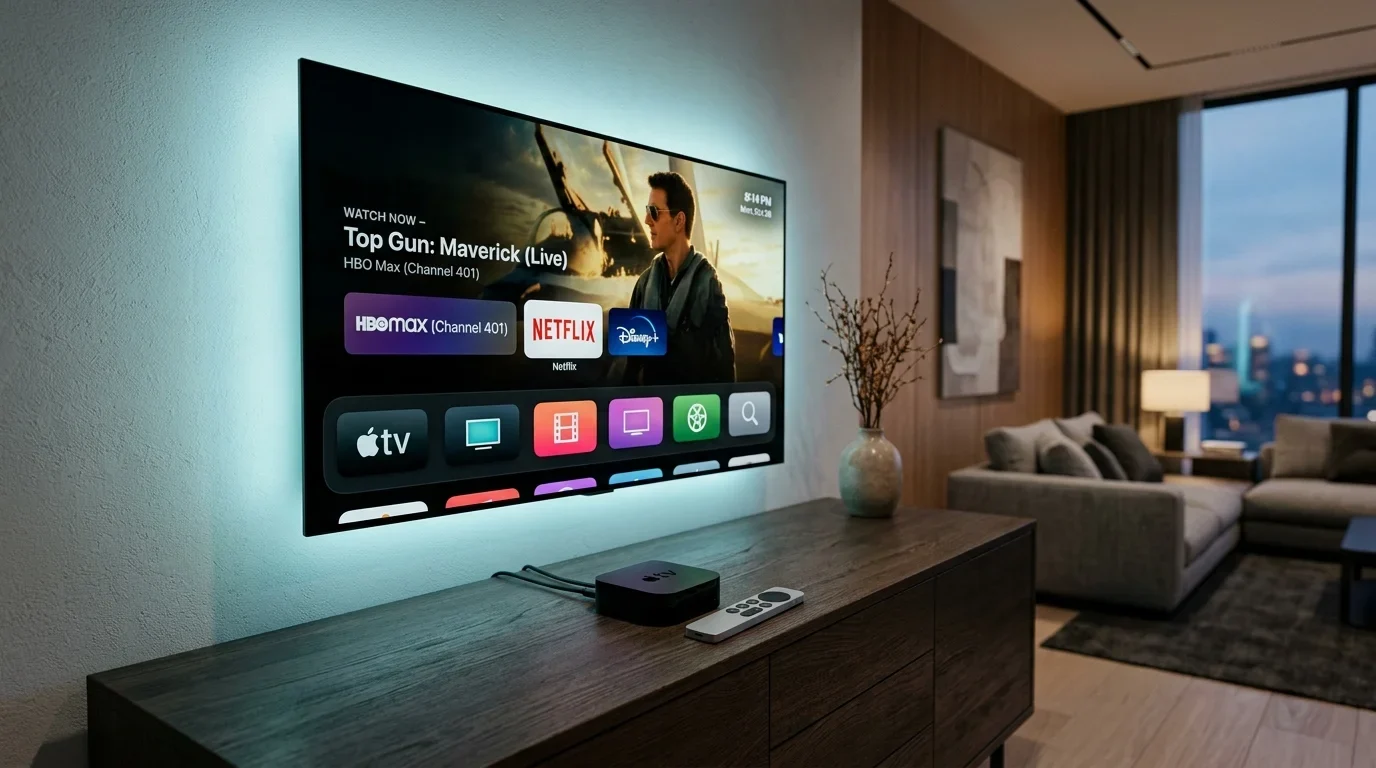
Among the wide array of streaming devices on the market—from budget HDMI sticks to standalone smart TVs—the Apple TV 4K stands in a class of its own. Powered by Apple's desktop-class A15 Bionic processor, equipped with 4GB of unified RAM, and running the meticulously optimized tvOS operating system, the Apple TV 4K possesses raw computational and graphical processing horsepower that dwarfs standard streaming sticks.
For IPTV enthusiasts, this hardware translates into an extraordinary viewing experience: silky 60fps user interface navigation, instantaneous channel zapping, zero thermal throttling during multi-hour sporting events, and pristine color rendering on OLED and mini-LED television panels.
However, because Apple enforces stringent security and developer guidelines within its tvOS App Store sandbox, setting up IPTV on Apple TV differs substantially from sideloading APK files on an Android TV or Amazon Firestick. You cannot simply download arbitrary Android files; instead, you must select and configure native tvOS media player applications engineered specifically to leverage Apple's AVPlayer framework.
In this comprehensive 2026 setup and optimization guide, we examine the best IPTV applications available for Apple TV 4K, provide step-by-step configuration walkthroughs for both Xtream Codes API and M3U playlists, and detail the exact video and audio calibration settings needed to unlock cinematic, broadcast-grade television in your living room.
How to setup and watch IPTV on Apple TV 4K
1. Why Apple TV 4K is the Ultimate Hardware Platform for IPTV
To understand why power users and home theater aficionados consistently choose the Apple TV 4K over budget streaming dongles, one must look at the hardware architecture powering tvOS:
+-----------------------------------------------------------------------+
|                 STREAMING HARDWARE SPECIFICATIONS COMPARISON          |
+--------------------------+---------------------+----------------------+
| Hardware Metric          | Apple TV 4K (3rd Gen| Fire TV Stick 4K Max |
+--------------------------+---------------------+----------------------+
| Processor Chipset        | Apple A15 Bionic    | MediaTek MT8696T     |
| CPU Architecture         | 6-Core (2P + 4E)    | 4-Core ARM Cortex-A55|
| Unified System RAM       | 4 GB LPDDR4X        | 2 GB LPDDR4          |
| Internal Storage         | 64 GB or 128 GB     | 16 GB                |
| Wired Network Interface  | 1000 Mbps Gigabit   | Requires 100M Adapter|
| Wireless Networking      | Wi-Fi 6 (802.11ax)  | Wi-Fi 6E (802.11ax)  |
| Frame Rate Matching (AFR)| OS-Level System API | App-Dependent Hack   |
| Interface Frame Rate     | Locked 60 FPS Native| Variable 30 - 60 FPS |
+--------------------------+---------------------+----------------------+
The Performance Advantages of tvOS:
- Effortless Playlist Parsing: When an IPTV provider offers 20,000 live channels and a massive 60,000-title VOD catalog, parsing that enormous database in RAM can crash low-spec sticks. The Apple TV 4K's 4GB of high-speed RAM and 6-core processor parses and indexes multi-gigabyte XMLTV EPG data in under two seconds.
- Zero Thermal Throttling: Budget streaming sticks plugged into the back of hot television panels frequently overheat during 4K 60fps live sports, resulting in frame dropping, audio desynchronization, and random reboots. The Apple TV's engineered chassis and thermal heat-sink allow the A15 Bionic chip to run cool even during continuous 12-hour viewing sessions.
- True Hardware Gigabit Ethernet: The 128GB Wi-Fi + Ethernet model of the Apple TV 4K includes a native 10/100/1000 Mbps Gigabit Ethernet port. While Amazon Firesticks cap out at 100 Mbps over micro-USB OTG adapters, the Apple TV can pull uncompressed network throughput with single-digit millisecond latency.
- Broadcast-Grade Frame Rate Matching: Apple TV features an operating-system-level Match Frame Rate API that automatically synchronizes your television display's physical refresh rate to the incoming broadcast (switching seamlessly between 50Hz for European sports, 59.94Hz/60Hz for North American sports, and 24Hz for cinematic movies).
2. Navigating the tvOS App Store: The Top IPTV Players for Apple TV
Because you cannot sideload APK files onto tvOS without maintaining an active Apple Developer account and resigning certificates every 7 days, Apple TV users rely on official apps downloaded directly from the tvOS App Store.
 Apple TV IPTV player setup and application selection
Here are the premier IPTV applications available for Apple TV 4K in 2026:
1. iPlayTV (The Undisputed Gold Standard for Apple TV)
For tvOS power users, iPlayTV is universally recognized as the most refined, feature-packed, and visually stunning IPTV player on the platform.
+-----------------------------------------------------------------------+
|                        IPLAYTV SPECIFICATIONS                         |
+--------------------------+--------------------------------------------+
| Developer                | Antonio Meireles                           |
| Platform Availability    | Apple TV (tvOS), iPad, iPhone              |
| Connection Protocols     | Xtream Codes API, M3U Playlist URL         |
| EPG Architecture         | Multi-Source XMLTV with Auto Time-Shift    |
| Cloud Sync Support       | Apple iCloud Playlist & Favorites Sync     |
| Multi-Screen Support     | Up to 4 Live Feeds Simultaneously          |
| Video Framework          | Native Apple AVPlayer + Custom Decoders    |
| Pricing                  | One-Time App Store Purchase (~$5.99)       |
+--------------------------+--------------------------------------------+
Why iPlayTV Leads on tvOS:
- Cinematic Television Guide: The interface feels like a high-end cable box designed by Apple. Scrolling through categories is butter-smooth, channel previews play in real-time in the upper corner of the guide, and program descriptions are rendered with rich typography.
- iCloud Synchronization: If you configure your favorite channels, custom channel groups, or hide unwanted foreign categories on your Apple TV, your settings automatically sync across your iPhone and iPad via iCloud.
- Multi-View Capability: Allows you to watch up to 4 live sports matches simultaneously in a 2x2 grid or 1-large/3-small layout, with one-click audio switching using the Siri Remote.
- Native Siri Remote Gesture Integration: Swiping across the touch-sensitive clickpad on the Siri Remote allows for rapid channel surfing, timeline scrubbing, and quick category jumping.
2. UHF Player: Deep-Dive into the Modern SwiftUI Contender
UHF has emerged as the most formidable modern rival to iPlayTV over the past year. Designed exclusively in Apple's modern SwiftUI framework, UHF feels as though it was designed directly by Apple's human interface design team in Cupertino.
+-----------------------------------------------------------------------+
|                         UHF PLAYER SPECIFICATIONS                     |
+--------------------------+--------------------------------------------+
| Framework Architecture   | 100% Native SwiftUI 5.0                    |
| Picture-in-Picture (PiP) | Native tvOS PiP with background playback   |
| Multi-Device Hand-Off    | Apple CloudKit Real-Time State Sync        |
| Telemetry Overlay        | Bitrate, Dropped Frames, Codec, Audio Map  |
| Siri Shortcuts Support   | Yes (Voice Channel Tuning)                 |
+--------------------------+--------------------------------------------+
Standout UHF Features:
- Native tvOS Picture-in-Picture (PiP): UHF fully integrates with the tvOS system Picture-in-Picture API. You can shrink your live sports broadcast into a floating corner window while navigating the Apple TV home screen, checking weather widgets, or browsing another app.
- CloudKit Real-Time Hand-Off: Start watching a football match in your living room on Apple TV. When you need to leave the room, open UHF on your iPhone or iPad: the stream picks up at the exact same second without missing a play.
- Advanced Telemetry Overlay: Pressing and holding the center button on your Siri Remote reveals a comprehensive diagnostics HUD showing current stream resolution, incoming bitrate in Mbps, hardware buffer fill percentage, audio format, and dropped frame counts.
3. GSE Smart IPTV (The Veteran Cross-Platform Choice)
GSE Smart IPTV is one of the oldest and most established IPTV player applications across both iOS and tvOS.
Key Strengths:
- Exceptional resilience when processing non-standard or malformed M3U playlists.
- Robust internal video player with extensive manual aspect ratio and audio offset controls.
- Universal purchase: buying the pro version unlocks the application across tvOS, iOS, and iPadOS.
Limitations:
- The user interface feels somewhat dated compared to the ultra-modern layouts of iPlayTV and UHF.
4. IPTV Smarters Pro (tvOS Edition Walkthrough)
For households that already use IPTV Smarters on Android or Windows devices, the tvOS edition provides a familiar three-tile layout (Live TV, Movies, Series).
+-----------------------------------------------------------------------+
|                   IPTV SMARTERS PRO TVOS INTERFACE                    |
+-----------------------------------------------------------------------+
|  [ LIVE TV ]             [ MOVIES (VOD) ]          [ SERIES (VOD) ]   |
|  Direct channel grid     Search by genre/actor     Complete box-sets  |
|  EPG timeline view       Multi-language subtitles  Episode auto-play  |
+-----------------------------------------------------------------------+
Step-by-Step Configuration on tvOS:
- Search for IPTV Smarters Pro on the tvOS App Store and install it.
- Open the app and select Login with Xtream Codes API.
- Enter your connection name: `Digitaline IPTV`.
- Enter your assigned username, password, and server URL from your activation confirmation.
- Click Add User and allow the app to complete its initial data synchronization.
3. Step-by-Step Configuration: Setting Up iPlayTV with Xtream Codes API
To illustrate how effortless setup is on Apple TV, follow this comprehensive walkthrough to configure iPlayTV using your Digitaline IPTV subscription credentials:
 Apple TV IPTV configuration flow
Step 1: Download iPlayTV from the tvOS App Store
- Power on your Apple TV 4K and launch the blue App Store icon.
- Navigate to the Search tab and type iPlayTV.
- Select the app and complete the download.
Step 2: Add a New Playlist via Xtream Codes API
- Launch iPlayTV on your Apple TV.
- On the welcome screen, select Add Playlist.
- You will be presented with several import options:
- Remote Playlist (URL)
- Xtream Codes Server
- Open Playlist from Web Browser
- Select Xtream Codes Server (this is the fastest and most stable connection method).
Step 3: Enter Your Connection Details
Using the on-screen keyboard (or using your iPhone as a keyboard remote for fast typing), fill in the three connection parameters provided in your Digitaline IPTV activation confirmation:
- Playlist Name: Enter any recognizable label, such as `Digitaline IPTV`.
- Server URL: Enter the portal URL (e.g., `http://your-server-domain.com:port\`).
- Username: Enter your assigned account username.
- Password: Enter your assigned account password.
Step 4: Configure Initial Sync Settings
- Toggle Include VOD to ON if you wish to import Movies and TV Series alongside Live TV.
- Toggle Auto Update EPG to ON.
- Click Save.
iPlayTV will now initiate a background handshake with the server, downloading category indexes and populating the Electronic Program Guide. On an Apple TV 4K connected to broadband, this initial sync takes approximately 10 to 15 seconds.
4. Siri Remote Gestures & Touch-Surface Navigation Shortcuts
Mastering the physical Apple TV Siri Remote (2nd or 3rd generation aluminum remote) transforms how you navigate live television:
+-----------------------------------------------------------------------+
|                    SIRI REMOTE SHORTCUTS FOR IPTV                     |
+--------------------------+--------------------------------------------+
| Gesture / Button Action  | Television / Player Function               |
+--------------------------+--------------------------------------------+
| Clickpad Outer Ring Swipe| Jog / scrub through timeline in VOD        |
| Clickpad Center Click    | Bring up Quick Channel Info & Subtitles    |
| Clickpad Long Press      | Open Channel Context Menu (Add to Favs)    |
| Swipe Up from Bottom     | Access Audio Language & Subtitle Drawer    |
| Swipe Down from Top      | Reveal Live Channel Zapping Carousel       |
| Double-Click TV Button   | Open tvOS System App Switcher              |
| Hold Back (<) Button     | Return immediately to the Main EPG Grid    |
+--------------------------+--------------------------------------------+
The Quick-Zapping Carousel:
In both iPlayTV and UHF, swiping down on the Siri Remote's touch clickpad while watching a broadcast in full screen slides up a translucent glass carousel showing recently viewed channels, without obstructing the current broadcast. Clicking left or right switches channels instantly.
5. AirPlay 2 vs. Native tvOS Apps: What You Need to Know
A frequent question from Apple users is whether they should simply stream IPTV on their iPhone or Mac and "beam" it to the television using Apple AirPlay 2.
+-----------------------------------------------------------------------+
|                     AIRPLAY 2 VS. NATIVE TVOS APPS                    |
+--------------------------+---------------------+----------------------+
| Feature                  | AirPlay 2 Mirroring | Native tvOS Player   |
+--------------------------+---------------------+----------------------+
| Video Resolution         | Capped at 1080p     | Native 4K UHD 60fps  |
| Frame Rate Matching      | No (Fixed 60Hz)     | Yes (Native 50/60Hz) |
| Latency to Live Broadcast| + 2 to 4 seconds    | Minimal (Sub-second) |
| Multi-Screen Support     | No                  | Up to 4 Streams Grid |
| Phone Battery Impact     | Rapid Battery Drain | Zero Phone Drain     |
| Phone Interruptions      | Phone calls pause TV| Completely Isolated  |
+--------------------------+---------------------+----------------------+
Verdict: While AirPlay 2 is convenient for showing photos or quick video clips, it should never be used as your primary live television viewing method. Installing a native tvOS app like iPlayTV or UHF ensures you receive uncompressed 4K video, native 60fps sports motion, and independent living room control.
6. tvOS Video Calibration: Match Dynamic Range & Match Frame Rate
This is where the Apple TV 4K establishes its absolute superiority over Android and Firestick hardware.
Most standard streaming boxes force all video output through a fixed video signal—for example, forcing a 4K 60Hz HDR output across every single broadcast. When a standard 1080p SDR 50Hz European soccer match is forced through a 60Hz HDR video pipeline, the television introduces visible motion judder (telecine pull-down artifacts) and washed-out, unnatural color tones.
The Apple TV 4K solves this permanently through its native Match Content system settings.
 Apple TV 4K video calibration and streaming setup
How to Configure Match Content on Apple TV 4K:
- Open the Apple TV Settings app.
- Select Video and Audio.
- Under the Format setting, select 4K SDR (Standard Dynamic Range). (Why SDR? Setting the base format to SDR ensures that standard television menus, user interfaces, and non-HDR live broadcasts look completely natural and vibrant, preventing your TV panel from running excessively bright).
- Scroll down and select Match Content.
- Set Match Dynamic Range to ON.
- Result: When you tune into a native 4K HDR or Dolby Vision live broadcast or movie on Digitaline IPTV, the Apple TV automatically switches your display panel into HDR mode. When you switch back to standard HD news or sports, it returns to SDR instantly.
- Set Match Frame Rate to ON.
- Result: When you watch European sports (broadcast natively at 50fps), the Apple TV instructs your TV display to refresh at exactly 50.000 Hz. When you switch to North American basketball or hockey (broadcast at 59.94fps or 60fps), your television switches to 60.000 Hz. Motion judder is mathematically eliminated.
7. HDMI 2.1 Certification & Cable Testing on Apple TV
A hidden culprit behind random black screens, audio drops, and HDCP handshake failures during 4K 60fps streaming is an inadequate HDMI cable.
The Apple TV 4K pushes exceptionally dense data streams when transmitting uncompressed 4K 60Hz HDR video with 4:4:4 or 4:2:2 chroma subsampling—requiring up to 18 Gbps to 48 Gbps of bandwidth across the physical cable.
+-----------------------------------------------------------------------+
|                    HDMI CABLE BANDWIDTH REQUIREMENTS                  |
+--------------------+-----------------------+--------------------------+
| Cable Standard     | Maximum Bandwidth     | Supported Video Modes    |
+--------------------+-----------------------+--------------------------+
| HDMI 1.4 (Legacy)  | 10.2 Gbps             | 1080p 60Hz / 4K 30Hz     |
| HDMI 2.0 (Premium) | 18.0 Gbps             | 4K 60Hz SDR / Basic HDR  |
| HDMI 2.1 (Ultra)   | 48.0 Gbps             | 4K 120Hz / 4K 60Hz 4:4:4 |
+--------------------+-----------------------+--------------------------+
Running the tvOS Built-in HDMI Diagnostic Test:
- On your Apple TV 4K, go to Settings -> Video and Audio.
- Scroll to the bottom and select Check HDMI Connection.
- The Apple TV will transmit high-bandwidth test patterns for approximately 15 seconds across various frequencies.
- If your cable fails or reports intermittent integrity loss, replace it with an officially certified Ultra High Speed HDMI 2.1 cable (48 Gbps). This resolves 99% of black screen blinks during channel switching.
8. Mastering Apple TV Audio: Dolby Atmos, 5.1 Surround & Spatial Audio
Audio fidelity on tvOS is processed through Apple's high-definition audio engine:
+-----------------------------------------------------------------------+
|                    TVOS AUDIO PROCESSING MODES                        |
+--------------------------+---------------------+----------------------+
| Audio Setting            | Signal Format       | Best Use Case        |
+--------------------------+---------------------+----------------------+
| Auto (Uncompressed LPCM) | Uncompressed 5.1/7.1| AV Receivers, Soundbars|
| Dolby Digital 5.1        | Compressed AC-3     | Legacy Optical Audio |
| Stereo                   | 2-Channel PCM       | Basic TV Speakers    |
+--------------------------+---------------------+----------------------+
1. Uncompressed Multichannel LPCM Output
Unlike Android devices that pass bitstream data directly to soundbars, the Apple TV 4K decodes Dolby Digital (AC-3) and Dolby Digital Plus (E-AC-3) internally using dedicated audio hardware, outputting pristine Multichannel Linear PCM (LPCM) over HDMI.
- If your soundbar or AV receiver displays "PCM" or "Multichannel Audio" instead of "Dolby Digital," do not panic. This is the intended behavior: your audio has been uncompressed losslessly by the Apple TV with zero audio quality degradation.
2. Apple HomePod Stereo Pair Integration
If you utilize a stereo pair of full-sized Apple HomePods or HomePod minis as your television audio system, tvOS routes your IPTV broadcast audio wirelessly over high-bandwidth Apple AirPlay 2.
- To eliminate any possibility of audio/video lip-sync delay, go to Settings -> Video and Audio -> Wireless Audio Sync.
- Follow the on-screen prompt using your iPhone's microphone to calibrate the acoustic timing between your TV panel and your HomePod speakers.
3. Personal Spatial Audio with AirPods
If you want to watch late-night live sports at full stadium volume without waking sleeping family members, pairing Apple AirPods Pro or AirPods Max unlocks Spatial Audio with Dynamic Head Tracking. The broadcast commentary remains firmly anchored to your physical television screen, creating an astonishingly immersive private stadium acoustic environment.
9. Optimizing Apple TV Network Infrastructure: Gigabit vs. Wi-Fi 6
High-bitrate live video streaming demands a rock-solid network foundation.
+-----------------------------------------------------------------------+
|                    APPLE TV 4K CONNECTION OPTIONS                     |
+--------------------+-----------------------+--------------------------+
| Connection Type    | Real-World Bandwidth  | Latency / Jitter Level   |
+--------------------+-----------------------+--------------------------+
| Gigabit Ethernet   | 940 - 980 Mbps        | 1 - 2 ms (Rock Solid)    |
| Wi-Fi 6 (5GHz)     | 450 - 750 Mbps        | 3 - 8 ms (Clean)         |
| Wi-Fi (2.4GHz)     | 35 - 70 Mbps          | 25 - 80 ms (Unstable)    |
+--------------------+-----------------------+--------------------------+
Best Practices for Apple TV Networking:
- Always Choose Hardwired Ethernet When Available: If you own the 128GB Apple TV 4K model equipped with Ethernet, run a Cat6 Ethernet cable directly from your router. Hardwiring provides an interference-free pipeline with single-digit millisecond latency, guaranteeing instantaneous channel zapping.
- Wi-Fi 6 Placement: If operating wirelessly, ensure your Apple TV connects to the 5GHz Wi-Fi 6 band of your router. Never place your Apple TV inside an enclosed metal entertainment cabinet, as metal enclosures degrade Wi-Fi signal strength and induce packet loss.
For an exhaustive guide on domestic bandwidth and network calibration, read our deep dive on IPTV internet speed requirements and bandwidth optimization.
Experience Digitaline IPTV
Upgrade your entertainment with ultra-stable, anti-freeze streaming. Access premium live channels, global sports, and curated VOD across all your supported devices.
10. Common tvOS IPTV Errors & Step-by-Step Fixes
If you encounter technical hiccups while streaming on Apple TV, use these rapid troubleshooting solutions:
Error 1: "Cannot Connect to Server" or SSL Handshake Failure
- Cause: tvOS enforces strict Apple App Transport Security (ATS) protocols. If your provider's server uses an expired or misconfigured SSL certificate over HTTPS, tvOS blocks the connection.
- Fix: When entering your Server URL in iPlayTV, change the protocol prefix from `https://` to `http://`, or append your provider's designated unencrypted HTTP port.
Error 2: Screen Goes Completely Black During Channel Changes
- Cause: The "Match Frame Rate" feature causes your television panel to perform an HDMI handshake (a brief 1 to 2-second screen blink) as it switches between 50Hz and 60Hz refresh rates.
- Fix: If the brief black blink during channel surfing bothers you, navigate to Apple TV Settings -> Video and Audio -> Match Content, and toggle Match Frame Rate to OFF. Keep Match Dynamic Range set to ON.
Error 3: Electronic Program Guide (EPG) Fails to Update
- Cause: Outdated local cache or corrupted XML database in app memory.
- Fix: Inside iPlayTV settings, select Clear EPG Cache. Restart your Apple TV by holding down the Back (<) and TV/Control Center buttons on the Siri Remote simultaneously until the Apple TV status light flashes rapidly. Re-open iPlayTV to trigger a fresh EPG synchronization.
11. Comprehensive Comparison: Apple TV 4K vs. Firestick 4K Max vs. Shield TV Pro
| Performance Metric | Apple TV 4K (3rd Gen) | Amazon Fire TV Stick 4K Max | NVIDIA Shield TV Pro |
|---|---|---|---|
| Operating System | tvOS (Apple Ecosystem) | Fire OS (Android-based) | Android TV 11 |
| Primary IPTV Apps | iPlayTV, UHF, GSE Smart | TiviMate, Smarters, XCIPTV | TiviMate, Sparkle TV |
| UI Fluidity & Framerate | Locked 60 FPS | 30–60 FPS (Occasional drops) | Locked 60 FPS |
| System-Level AFR (Match FPS) | Native OS-level API | Limited / App Hack | Native Refresh Rate Tool |
| Ethernet Speed | 1000 Mbps Gigabit | 100 Mbps (via OTG adapter) | 1000 Mbps Gigabit |
| Sideloading Difficulty | High (Requires Dev Tools) | Extremely Easy (Downloader) | Extremely Easy (Play Store/APK) |
| Average Device Lifespan | 5 to 7+ Years | 2 to 3 Years | 5 to 7+ Years |
| Overall Experience Rating | 9.8 / 10 | 8.5 / 10 | 9.7 / 10 |
12. Frequently Asked Questions
Can I install TiviMate on Apple TV?
No. TiviMate is developed exclusively for Android-based operating systems (Android TV, Google TV, and Amazon Fire OS). It cannot be installed natively on Apple TV's tvOS. However, iPlayTV and UHF provide an equally polished, high-performance viewing experience tailored specifically to the Apple TV ecosystem.
Can I sideload APK files onto Apple TV?
No. Apple TV runs tvOS, which is derived from iOS. It cannot execute Android APK files. All applications must be downloaded through the official tvOS App Store or installed via Apple's TestFlight beta testing platform.
How do I enter my IPTV credentials easily on Apple TV?
The easiest way is to use the Apple TV Remote feature built into your iPhone or iPad. When a text input field appears on your television screen, a notification pops up on your iPhone allowing you to copy and paste your Server URL, username, and password directly from your email into the Apple TV. Alternatively, use iPlayTV's built-in web management upload portal.
Does Apple TV 4K support 60fps live sports streaming on IPTV?
Yes. The Apple TV 4K excels at 60fps playback. When paired with a premium service like Digitaline IPTV that delivers native 60fps sports channels, the A15 Bionic processor decodes 1080p and 4K 60fps streams with zero dropped frames.
Why is there a brief black screen when I switch between certain channels?
This brief 1-second screen blink is the Match Frame Rate feature at work. Your television panel is physically adjusting its refresh rate to match the broadcast (e.g., shifting from 60Hz for US basketball to 50Hz for European soccer). You can disable this in Apple TV Settings -> Video and Audio -> Match Content -> Match Frame Rate if you prefer continuous instant zapping.
Does iPlayTV support Multi-View (watching multiple games at once)?
Yes. iPlayTV features a robust Multi-Screen mode that allows you to stream up to 4 live channels simultaneously on your Apple TV screen. You can select your audio stream focus easily using the Siri Remote.
Do I need a VPN on Apple TV for IPTV?
tvOS 17 and tvOS 18 now support native third-party VPN applications directly through the App Store (such as ExpressVPN, NordVPN, and Surfshark). If your Internet Service Provider throttles streaming traffic during live sports events, downloading a native VPN app directly to your Apple TV provides instant encryption and traffic unblocking.
Can I share my iPlayTV purchase across my family's Apple devices?
Yes. If you have Apple Family Sharing enabled, a single purchase of iPlayTV on your Apple ID can be downloaded and used across all compatible Apple TV, iPad, and iPhone devices within your family group at no additional charge.
13. Final Checklist: Enjoying Elite IPTV on Apple TV 4K
Setting up IPTV on Apple TV 4K elevates your home entertainment to cinema-grade heights. By leveraging the immense processing power of the A15 Bionic chip, the visual precision of tvOS Match Content calibration, and the polished interface of native apps like iPlayTV, you can enjoy a television experience that completely outclasses traditional cable boxes.
To ensure your Apple TV setup remains at peak performance:
- Download iPlayTV or UHF from the tvOS App Store.
- Connect using Xtream Codes API for fast database indexing.
- Configure Match Dynamic Range to ON and base format to 4K SDR.
- Test your HDMI cable using Apple TV's built-in diagnostic tool.
- Hardwire your Apple TV via Gigabit Ethernet for single-digit ping latency.
Ready to experience high-bitrate, buffer-free streaming on the world's most powerful media box? Choose your package on our Digitaline IPTV subscription page, or visit our installation section for more platform tutorials today.