How to Watch Live NBA Games on IPTV: Complete 60FPS Streaming & Lag-Free Setup Guide
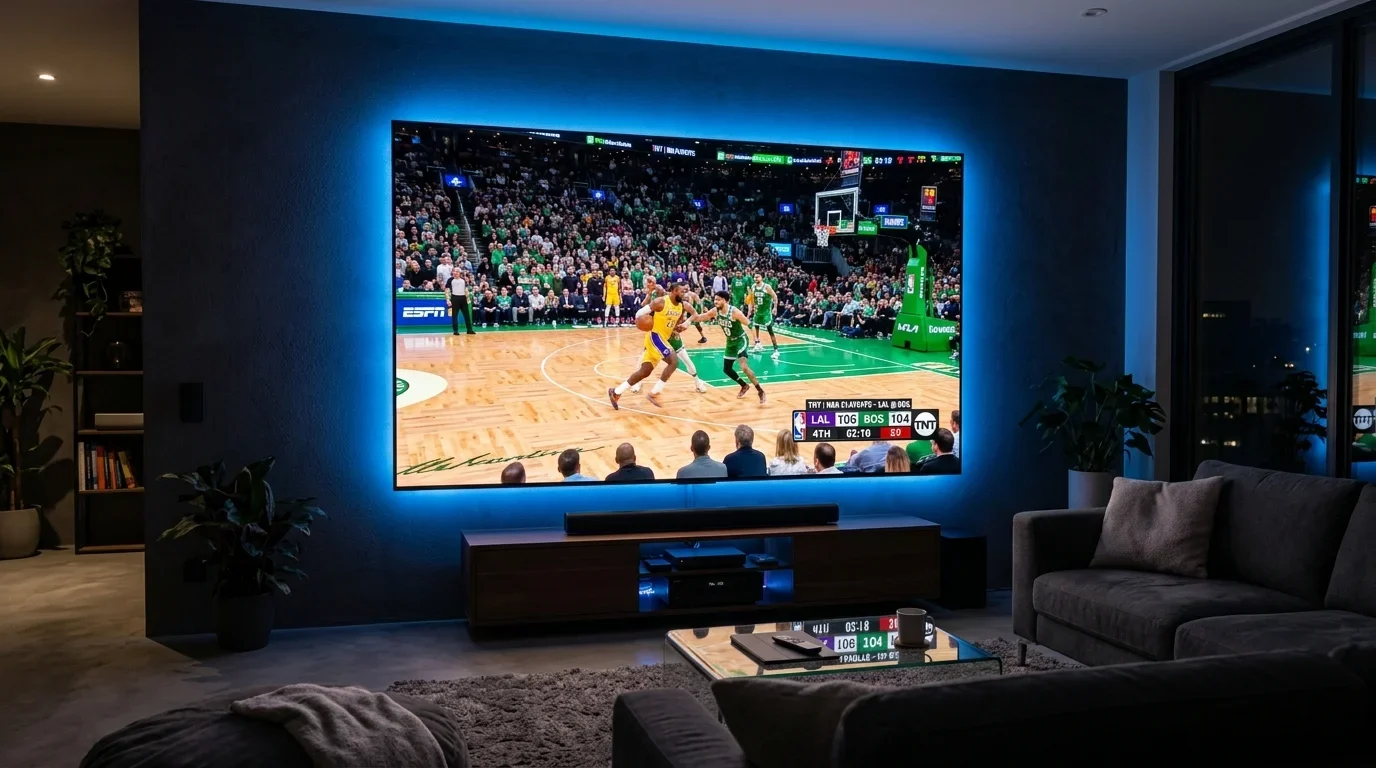
For dedicated basketball enthusiasts, following the National Basketball Association across an 82-game regular season, the In-Season Tournament (NBA Cup), and the grueling two-month NBA Playoffs has become an increasingly complex and expensive undertaking. What once required a basic cable package has fragmented into an unwieldy labyrinth of exclusive streaming platforms, national broadcast networks, Regional Sports Networks (RSNs), and frustrating local market blackouts.
Traditional cable subscriptions routinely exceed $120 to $160 per month, yet fans frequently find their hometown team's games blacked out on official streaming packages like NBA League Pass due to archaic regional broadcast territory exclusivity deals.
Internet Protocol Television (IPTV) has emerged as the definitive solution for modern basketball fans. A high-performance IPTV service consolidates every national broadcast feed, every local regional sports network, dedicated team channels, and international broadcast feeds into a single unified interface—completely bypassing local geographical blackouts while delivering true broadcast-grade 60fps video quality.
However, streaming high-tempo basketball requires precise technical calibration. A missed defensive rotation, a split-second buzzer-beater, or a fast-break slam dunk can be ruined if your player stutters, drops frames, or suffers audio lag. This comprehensive technical guide provides everything you need to watch every NBA game live with pristine 60fps fluidity, zero buffering, and crystal-clear sound.
How to watch NBA games live on IPTV guide
1. The Fragmented NBA Broadcast Landscape & The Local Blackout Dilemma
To understand why IPTV provides such an immense advantage for basketball fans, one must first examine the fragmented state of modern NBA broadcasting rights.
In North America, NBA broadcasting rights are divided into two distinct categories:
1. National Broadcast Exclusivity
National games are broadcast across major commercial networks:
- ABC / ESPN / ESPN2: Major weekend showcases, Christmas Day double-headers, and the NBA Finals.
- TNT / TBS: Renowned for Thursday night prime-time doubleheaders and exclusive coverage of the NBA All-Star Game and Eastern/Western Conference Finals.
- NBA TV: Dedicated league-owned network broadcasting nightly regular season games, studio analysis, and historical hardwood classics.
2. Regional Sports Networks (RSNs) & Local Market Blackouts
For the remaining 75% of regular season games, broadcast rights belong to Regional Sports Networks. If you live within a team's designated home broadcast market (for example, living in Southern California for the Los Angeles Lakers or the New York metropolitan area for the Knicks), local broadcast contracts dictate that:
- Official standalone streaming apps like NBA League Pass enforce mandatory geographical blackouts for all live local team games. Even if you pay the full annual League Pass subscription, you cannot watch your home team live.
- Many prominent RSNs—including the FanDuel Sports Network (formerly Bally Sports), NBC Sports Regional Networks, YES Network, NESN, and Altitude Sports—have been dropped by major streaming providers like YouTube TV, Hulu + Live TV, and Sling TV due to soaring carriage fee disputes.
How IPTV Solves the Blackout Problem
A premium IPTV provider like Digitaline IPTV operates global satellite ingestion headends that bypass local IP geolocation restrictions entirely. Subscribers receive access to:
- Every regional home and away RSN feed simultaneously, allowing you to choose between your home team's local commentary crew or the opposing team's broadcast.
- Full national broadcast feeds across USA, Canadian (TSN, Sportsnet), and UK/European networks (TNT Sports, Sky Sports).
- Dedicated 24/7 NBA team channels and pay-per-view live event feeds with zero geographical blackout restrictions.
2. Comprehensive 30-Team NBA Regional Broadcast Network Directory
To help you locate your team's exact regional broadcast feed on Digitaline IPTV, here is the definitive, up-to-date broadcast rights directory for all 30 NBA franchises across both conferences:
Eastern Conference Broadcast Mappings
Atlantic Division
- Boston Celtics: Primary broadcast on NBC Sports Boston (featuring Mike Gorman and Brian Scalabrine). National showcases on ESPN, ABC, and TNT.
- Brooklyn Nets: Primary regional coverage on YES Network (featuring Ian Eagle and Sarah Kustok). Select regional overflow broadcasts on WWOR-TV My9.
- New York Knicks: Exclusive regional coverage on MSG Network / MSG Sportsnet (anchored by legendary hall-of-fame play-by-play voice Mike Breen and Walt "Clyde" Frazier).
- Philadelphia 76ers: Primary regional telecasts on NBC Sports Philadelphia and NBC Sports Philadelphia Plus (Kate Scott and Alaa Abdelnaby).
- Toronto Raptors: Canadian national broadcast split between TSN (The Sports Network 1–5) and Sportsnet (Sportsnet One, Sportsnet East/Ontario/West/Pacific).
Central Division
- Chicago Bulls: Broadcast on Chicago Sports Network (CHSN) (formerly NBC Sports Chicago), covering all regular-season regional matchups.
- Cleveland Cavaliers: Regional coverage on FanDuel Sports Network Ohio (formerly Bally Sports Ohio).
- Detroit Pistons: Regional broadcasts on FanDuel Sports Network Detroit (formerly Bally Sports Detroit).
- Indiana Pacers: Telecasts across FanDuel Sports Network Indiana (formerly Bally Sports Indiana).
- Milwaukee Bucks: Regional coverage on FanDuel Sports Network Wisconsin (formerly Bally Sports Wisconsin).
Southeast Division
- Atlanta Hawks: Regional broadcasts on FanDuel Sports Network Southeast (formerly Bally Sports Southeast).
- Charlotte Hornets: Telecasts on FanDuel Sports Network Southeast (Charlotte market feed).
- Miami Heat: Regional broadcasts on FanDuel Sports Network Sun (formerly Bally Sports Sun) with Eric Reid and John Crotty.
- Orlando Magic: Exclusive regional coverage on FanDuel Sports Network Florida (formerly Bally Sports Florida).
- Washington Wizards: Coverage broadcast on Monumental Sports Network (formerly NBC Sports Washington).
Western Conference Broadcast Mappings
Northwest Division
- Denver Nuggets: Regional coverage on Altitude Sports & Entertainment (one of the most heavily disputed channels on traditional cable, fully accessible via Digitaline IPTV).
- Minnesota Timberwolves: Broadcasts on FanDuel Sports Network North (formerly Bally Sports North).
- Oklahoma City Thunder: Regional coverage on FanDuel Sports Network Oklahoma (formerly Bally Sports Oklahoma).
- Portland Trail Blazers: Broadcasts on Root Sports Northwest and Rip City Television Network.
- Utah Jazz: Telecasts across KJZZ-TV / Jazz+ regional feeds.
Pacific Division
- Golden State Warriors: Regional broadcasts on NBC Sports Bay Area (Bob Fitzgerald and Kelenna Azubuike).
- Los Angeles Clippers: Regional broadcasts on FanDuel Sports Network SoCal and select over-the-air broadcasts on KTLA 5.
- Los Angeles Lakers: Exclusive regional home on Spectrum SportsNet (featuring Bill Macdonald and Stu Lantz).
- Phoenix Suns: Regional broadcasts on Arizona's Family Sports (3TV / KPHE-LD) and Suns Live.
- Sacramento Kings: Coverage on NBC Sports California (Mark Jones and Kyle Draper).
Southwest Division
- Dallas Mavericks: Broadcasts across KFAA 29 / Mavs TV regional network.
- Houston Rockets: Exclusive regional broadcasts on Space City Home Network (formerly AT&T SportsNet Southwest).
- Memphis Grizzlies: Regional coverage on FanDuel Sports Network Southeast (Memphis market feed).
- New Orleans Pelicans: Broadcasts on Gulf Coast Sports & Entertainment Network.
- San Antonio Spurs: Regional telecasts on FanDuel Sports Network Southwest (formerly Bally Sports Southwest) and local over-the-air feeds on KENS 5.
3. The Science of Sports Streaming: Why 60 FPS is Non-Negotiable for Basketball
One of the most frequent complaints among sports fans using budget streaming services is that the broadcast looks "blurry," "jittery," or causes eye strain during camera pans. This visual degradation is caused by an inadequate Frame Rate (Frames Per Second - FPS).
 NBA live stream quality and frame rate comparison
+-----------------------------------------------------------------------+
|                    FRAME RATE IMPACT ON LIVE SPORTS                   |
+--------------------------+---------------------+----------------------+
| Broadcast Metric         | 30 FPS Standard     | 60 FPS Sports Tier   |
+--------------------------+---------------------+----------------------+
| Frames Rendered / Second | 30 individual imgs  | 60 individual imgs   |
| Motion Blur on Fast Pass | Severe / Streaking  | Minimal / Sharp      |
| Camera Pan Fluidity      | Noticeable Judder   | Silky Smooth         |
| Ball Trajectory Tracking | Skips across screen | Continuous Motion    |
| Visual Eye Fatigue       | High after 1 hour   | Zero Eye Strain      |
+--------------------------+---------------------+----------------------+
Motion Vector Physics on the Hardwood
Basketball is among the fastest indoor sports in the world. The basketball moves at speeds exceeding 40 miles per hour during transition passes, players sprint across 94 feet of court, and high-speed multi-axis camera rigs continuously pan horizontally across the hardwood floor.
- At 30 frames per second, a camera panning quickly across the court updates the screen every 33.3 milliseconds. Your television display must hold each individual frame twice as long, creating visible motion judder and blurring the basketball into a faint orange streak.
- At 60 frames per second, the screen updates every 16.6 milliseconds. The ball trajectory remains razor-sharp, player jerseys and numbers are legible even during high-speed transitions, and the entire viewing experience mirrors sitting courtside.
When selecting an IPTV service for basketball, always ensure that sports categories provide native FHD (1080p @ 60fps) or 4K UHD (2160p @ 60fps) streams. Check our live channel offerings in the Digitaline IPTV sports lineup to verify dedicated 60fps stream availability.
4. Video Bitrate, Codec Compression, and Fast-Motion Artifacts
High resolution (1080p or 4K) means very little if the underlying video stream has been suffocated by aggressive digital compression.
When a provider compresses video to save bandwidth, fast-motion scenes are where the degradation shows first. You might notice the hardwood floor breaking into blocky digital squares (known as macroblocking) or player silhouettes developing fuzzy pixel halos during fast breaks.
Bitrate Benchmarks for High-Fidelity Basketball
- Substandard 1080p Stream (2.5 – 3.5 Mbps): The court looks acceptable when players are standing at the free-throw line, but turns into a pixelated mosaic the moment a fast break occurs.
- Standard Cable/Satellite Broadcast (5.0 – 8.0 Mbps H.264): Acceptable sharpness with moderate motion preservation.
- Premium IPTV Sports Feed (9.0 – 14.0 Mbps H.264 or 6.0 – 9.0 Mbps HEVC/H.265): Pristine clarity. The wood grain of the hardwood court, the net mesh ripples, and sweat droplets are rendered with complete fidelity, even during rapid camera movement.
At Digitaline IPTV, our dedicated sports streams are encoded using high-profile hardware HEVC and H.264 encoders configured with low keyframe intervals (GOP size = 1 to 2 seconds), ensuring immediate recovery from network packet drops and preventing macroblocking artifacts.
5. Stadium Audio Engineering: Mastering Soundbars, Dialogue & Crowd Noise
A basketball game is not merely a visual experience—it is an acoustic spectacle. The squeak of high-traction sneakers gripping polished maple hardwood, the resonant rattle of the iron rim on a thunderous dunk, the sharp tweet of the referee's whistle, and the thunderous roar of 20,000 screaming fans all contribute to game-day immersion.
Many budget streaming services downmix all sports channels to muddy 96 kbps stereo MP3, rendering commentary inaudible beneath muffled background noise. Here is how audio engineering works on premium IPTV:
+-----------------------------------------------------------------------+
|                    AUDIO ENCODING & ACOUSTIC FORMATS                  |
+--------------------------+---------------------+----------------------+
| Format                   | Bitrate & Channels  | Acoustic Experience  |
+--------------------------+---------------------+----------------------+
| Standard Stereo (AAC-LC) | 128 - 192 kbps (2.0)| Clean commentary     |
| Dolby Digital (AC-3)     | 384 - 448 kbps (5.1)| Directional arena    |
| Dolby Digital Plus (EAC3)| 640 kbps (5.1 / 7.1)| Full stadium depth   |
+--------------------------+---------------------+----------------------+
Optimizing Player Audio Settings for Basketball:
- Enable Audio Passthrough: In your IPTV player (such as TiviMate or XCIPTV), set Audio Output to Passthrough (Bitstream). This allows your connected soundbar or AV receiver to decode the native Dolby Digital 5.1 bitstream directly rather than forcing your streaming stick to downmix to stereo.
- Dialogue Enhancement (Center Channel Boost): In a 5.1 audio mix, play-by-play and color commentary are anchored exclusively to the center speaker channel, while arena atmosphere and baseline effects mics are routed to left, right, and rear surround channels. If commentary is drowned out by arena music, boost your center channel by +2.0dB on your soundbar.
- Audio Resampling: If your soundbar occasionally clicks or pops when switching between channels, disable audio resampling in your player's advanced settings to preserve the broadcast clock.
6. Network Calibration: Eliminating Micro-Stutters, Packet Loss, and Jitter
Nothing ruins a fourth-quarter comeback like a stream that freezes with 30 seconds remaining on the game clock. Because live sports streams deliver high continuous bitrates, your local home network must be optimized to handle the sustained throughput.
 Optimizing your home network for NBA IPTV streaming
1. Hardwiring with Physical Ethernet: The Number One Rule
While modern Wi-Fi 6 and Wi-Fi 7 offer impressive peak speed test numbers, wireless radio frequencies are inherently subject to environmental interference from nearby networks, microwave ovens, baby monitors, and physical walls.
- Wi-Fi packets that suffer collision must be re-transmitted. This microsecond delay introduces network jitter. While a web page loading a few milliseconds slower is unnoticeable, a 60fps video stream encountering jitter will drop frames or buffer.
- The Solution: Connect your streaming hardware (NVIDIA Shield, Apple TV 4K, Smart TV, or Amazon Firestick using an inexpensive Amazon Ethernet Adapter) directly to your router using a Cat6 or Cat7 Ethernet cable. Hardwiring provides a dedicated, interference-free pipeline with near-zero jitter.
2. If You Must Use Wi-Fi: Lock to the 5GHz Band
If running an Ethernet cable is physically impossible:
- Never connect your streaming device to the 2.4GHz Wi-Fi frequency band. The 2.4GHz band is overcrowded, susceptible to interference, and caps out at lower real-world throughputs.
- Separate your home router's Wi-Fi bands into two distinct network names (SSIDs): e.g., `HomeNetwork_2.4G` and `HomeNetwork_5G`.
- Connect your streaming television exclusively to the 5GHz band, ensuring your device is placed within unobstructed line-of-sight or within 20 feet of your router.
3. Router Quality of Service (QoS) Configuration
If other members of your household download large PC game files, upload video content, or participate in Zoom video calls while you are watching the game, they can congest your router's bandwidth queue.
- Log into your home router's administration portal (typically `192.168.1.1` or `192.168.0.1`).
- Navigate to the Quality of Service (QoS) or Bandwidth Control section.
- Identify the MAC address or local IP address of your primary television streaming device.
- Assign your television High Priority or configure a guaranteed minimum bandwidth allocation of 30 Mbps. This ensures that even if another device saturates your internet connection, your live NBA broadcast receives top priority in the packet queue.
For more technical network tuning advice, read our comprehensive guide on IPTV internet speed requirements and bandwidth optimization.
7. Player Configuration for Sports: TiviMate, Hardware Acceleration & Buffers
Selecting the right IPTV application and calibrating its playback engine can eliminate 90% of visual stutter.
Step-by-Step TiviMate Sports Optimization:
For users on Android TV, Google TV, or Amazon Firestick, TiviMate IPTV Player is the premier tool for live basketball. Configure the following settings:
- Activate Hardware Video Decoding:
- Go to Settings -> Playback -> Video decoder.
- Select Hardware (HW).
- Rationale: Offloads H.265/H.264 decompression directly to your streaming stick's GPU, guaranteeing full 60fps motion processing without processor overheating.
- Optimize Audio Passthrough:
- Go to Settings -> Playback -> Audio decoder.
- Select Hardware (HW), and enable Audio Passthrough if your television is connected to a soundbar or home theater AV receiver supporting Dolby Digital 5.1.
- Calibrate Buffer Size:
- Go to Settings -> Playback -> Buffer size.
- If connected via physical Ethernet: Select Small (1 second) or Normal (2 seconds). This preserves lightning-fast channel zapping while maintaining an adequate safety margin against transient packet spikes.
- If on Wi-Fi: Select Medium (3 to 5 seconds) to absorb wireless signal variations.
- Enable Auto Frame Rate Matching (AFR):
- Go to Settings -> Playback -> Auto frame rate (AFR).
- Toggle ON.
- Rationale: AFR forces your TV display panel to automatically switch its physical refresh rate to match the incoming broadcast (switching to exactly 60.000 Hz or 59.940 Hz), eliminating telecine judder.
8. Automated DVR & Recording Masterclass for Late-Night & West Coast Games
For East Coast viewers or international basketball fans living in the UK, Europe, or the Middle East, watching Pacific Division matchups (featuring the Lakers, Warriors, Clippers, Suns, or Kings) live is challenging due to 10:30 PM Eastern / 3:30 AM GMT tip-off times.
Setting up automated Digital Video Recording (DVR) allows you to wake up in the morning and watch the complete game with full commercial-skipping capabilities.
+-----------------------------------------------------------------------+
|                    DVR CONFIGURATION IN TIVIMATE                      |
+--------------------------+--------------------------------------------+
| Storage Destination      | External USB Flash (FAT32/exFAT) or SMB    |
| Buffer Padding (Start)   | + 5 Minutes before scheduled tip-off       |
| Buffer Padding (End)     | + 45 Minutes after scheduled conclusion    |
| Audio/Video Container    | Native Transport Stream (.ts) lossless     |
+--------------------------+--------------------------------------------+
The Critical Rule of Basketball Recording: End-Time Padding
The single most common mistake in recording sports is relying solely on the published EPG schedule time. A regulation NBA game officially lasts 48 minutes of game time, but television broadcasts routinely run 2 hours and 25 minutes to 2 hours and 45 minutes due to commercial breaks, halftime, reviews, and intentional late-game fouls. If a game goes into overtime, the broadcast can easily exceed 3 hours.
- The Solution: In TiviMate, when scheduling a recording from the EPG guide, select Custom Recording.
- Configure Stop Recording padding to +45 minutes (or +60 minutes during the playoffs). This guarantees that even if a game goes into double overtime, your recording will not cut off with 2 minutes remaining in the fourth quarter.
9. Multi-Screen Stadium Setup: Tracking Multiple Games Simultaneously
During busy NBA nights—such as Wednesday or Friday slates where 10 to 12 games occur concurrently—choosing which game to watch can be agonizing.
One of the standout features of modern IPTV streaming is Multi-Screen (Multi-View) capabilities:
+-----------------------------------------------------------------------+
|                    MULTI-SCREEN SPORTS DISPLAY LAYOUTS                |
+-----------------------------------+-----------------------------------+
| 2-Screen Split (Side-by-Side)     | 4-Screen Quad Grid                |
| Ideal for 55" - 65" Displays      | Ideal for 65" - 85" Home Theaters |
+-----------------------------------+-----------------------------------+
| +---------------+---------------+ | +---------------+---------------+ |
| | Game 1 (LAL)  | Game 2 (BOS)  | | | Game 1: ESPN  | Game 2: TNT   | |
| | Audio Active  | Audio Muted   | | | Audio Active  | Audio Muted   | |
| +---------------+---------------+ | +---------------+---------------+ |
|                                   | | Game 3: RSN 1 | Game 4: RSN 2 | |
|                                   | | Audio Muted   | Audio Muted   | |
|                                   | +---------------+---------------+ |
+-----------------------------------+-----------------------------------+
How to Configure Multi-Screen in TiviMate:
- Tune into your first NBA game in full screen.
- Press the Select / OK button on your remote control to bring up the player control menu.
- Scroll right and select the Multi-view icon (represented by divided rectangles).
- Click Add screen. A split-screen window will appear.
- Navigate your channel list or EPG guide and select your second NBA game.
- Repeat the process to add a 3rd or 4th stream if desired.
- To switch which game's live commentary plays through your speakers, simply use the directional pad on your remote to move the glowing focus outline to that specific window.
Note: Multi-screen streaming draws multiple concurrent video feeds simultaneously. Ensure your Digitaline IPTV subscription includes a multi-connection package, and ensure your home broadband connection can handle 30 to 50 Mbps of sustained throughput.
Experience Digitaline IPTV
Upgrade your entertainment with ultra-stable, anti-freeze streaming. Access premium live channels, global sports, and curated VOD across all your supported devices.
10. Game-Day Pre-Tip Checklist (30 Minutes Before the Game)
Avoid troubleshooting during the opening tip-off by completing this quick 5-minute pre-game routine:
``` [ ] 1. Check your streaming device's network connection via an in-app speed test. [ ] 2. Update your Electronic Program Guide (Settings -> EPG -> Update EPG) to verify tip-off times. [ ] 3. Locate your game across both national feeds and regional home/away RSN channels. [ ] 4. Test both the primary feed and the secondary backup feed to confirm 60fps fluidity. [ ] 5. Clear your IPTV player app cache (Settings -> Apps -> TiviMate -> Clear Cache) to purge old temporary data. [ ] 6. Confirm your audio format (Stereo vs Dolby Digital 5.1) is balanced properly across your soundbar. ```
Completing these quick checks ensures a completely uninterrupted viewing experience from opening tip to the final buzzer.
11. In-Game Troubleshooting: Quick Fixes When Trouble Arises
If an unexpected glitch occurs during live game action, use these rapid diagnostic protocols:
Problem 1: The Stream Freezes or Loops the Last 3 Seconds of Video
- Cause: The specific edge CDN node you are connected to suffered a localized transponder packet drop.
- Immediate Fix: Do not wait for the stream to unfreeze. Zap one channel up, then immediately zap one channel down. This forces the media player to terminate the broken TCP/HTTP socket and initiate a brand new connection to the server.
- Secondary Fix: Switch to the alternative broadcast feed. If you were watching the game on the local away RSN feed, switch to the home RSN feed or a national feed.
Problem 2: Audio and Video Fall Out of Sync (Lip-Sync Drift)
- Cause: The video decoder dropped frames during a brief network hiccup, but the audio decoder continued playing without waiting for the video clock.
- Immediate Fix: In TiviMate or XCIPTV, press Select, navigate to Audio Settings, and adjust the Audio Delay slider by +100ms or -100ms until mouth movements align with commentary. Alternatively, toggle your Video Decoder from Hardware to Hardware+ to force a timestamp resync.
Problem 3: The Picture is Smooth but Grainy or Pixelated
- Cause: Your player is receiving an adaptive downscaled feed because your router or ISP is throttling connection bandwidth.
- Immediate Fix: Change your DNS servers on your streaming device to Cloudflare Public DNS (`1.1.1.1` and `1.0.0.1`). If ISP throttling is severe during weekend peak hours, connect through a trusted VPN using the WireGuard protocol.
For an extensive exploration of live sports configuration, read our companion guide on the best IPTV player setup for live sports.
12. Frequently Asked Questions
Can I watch every single NBA game without local blackouts on IPTV?
Yes. Because high-tier IPTV services like Digitaline IPTV ingest satellite feeds and broadcast streams globally, your connection is not subject to the geographical market restrictions enforced by cable operators or standalone single-market apps. You can stream every home game, away game, national broadcast, and playoff matchup from anywhere in the world.
What is the ideal frame rate for streaming live NBA basketball?
The gold standard for live basketball is 60 frames per second (FPS) or 50 FPS for European broadcasts. Standard 30 FPS feeds display visible motion judder and blurring during fast passes, court transitions, and fast breaks. A true 60fps stream ensures silky-smooth motion and crisp player tracking.
What internet speed do I need to watch live NBA games in 4K or 60FPS?
For an individual 1080p 60fps sports stream, a dedicated, stable connection of 25 to 30 Mbps is recommended. For 4K UHD 60fps broadcasts, you should have at least 50 Mbps of clean bandwidth. If multiple people in your household are streaming, gaming, or downloading simultaneously, a 100 Mbps or higher home broadband plan is advised.
What is the difference between Home and Away RSN feeds?
Regional Sports Networks provide dedicated commentary teams for each respective basketball franchise. For example, when the Golden State Warriors play the Boston Celtics, NBC Sports Bay Area provides the Warriors' home commentary, while NBC Sports Boston features the Celtics' broadcasting crew. Premium IPTV services provide both feeds, allowing you to choose your preferred commentators.
Why do some live sports streams buffer specifically during the 4th quarter?
Fourth-quarter buffering typically occurs for two reasons: either thousands of concurrent viewers tune in during the final minutes of a close game, overwhelming low-tier providers that lack load-balanced servers, or your local Internet Service Provider (ISP) detects sustained video traffic during peak evening hours and throttles your connection. Using a provider with anti-freeze CDN architecture like Digitaline IPTV and switching to Cloudflare DNS prevents this issue.
Can I watch multiple NBA games at the same time on one screen?
Yes. By using advanced IPTV player applications such as TiviMate Premium on an Android TV or Firestick, you can activate Multi-View to display 2, 4, or up to 9 live games simultaneously in a split-screen grid. Ensure your subscription plan supports multiple concurrent connections.
Does IPTV support NBA All-Star Weekend and the NBA In-Season Tournament?
Yes. All special NBA league events—including the NBA In-Season Tournament (NBA Cup), All-Star Saturday Night (3-Point Contest and Slam Dunk Contest), the All-Star Game, the Play-In Tournament, and the NBA Finals—are broadcast across national networks (TNT, ESPN, ABC) and dedicated event feeds available on Digitaline IPTV.
How do I stop stream spoilers from social media notifications?
Live digital video streams over the internet inherently have a 10 to 25-second delay compared to live terrestrial broadcast feeds. If you have sports apps (like ESPN or the NBA App) sending instant push notifications to your smartphone, mute notifications for your game or set your player's buffer size to "Small" to minimize broadcast latency.
13. Final Summary: Your Ultimate Courtside Experience
Streaming live NBA basketball should be an exhilarating, effortless experience. By leaving behind restrictive cable contracts, arbitrary local blackout rules, and overpriced single-market streaming apps, you can unlock full access to every matchup across the entire league.
To ensure your game-day experience is flawless:
- Choose a high-bitrate, anti-freeze provider with dedicated 60fps sports feeds like Digitaline IPTV.
- Connect your streaming hardware via a physical Ethernet cable to eliminate wireless jitter.
- Use a broadcast-grade television player like TiviMate calibrated for Hardware (HW) decoding.
- Keep alternative RSN and national feeds bookmarked in your Favorites for instant backup access.
Ready to elevate your game-day entertainment? Browse our sports-optimized channel packages on our Digitaline IPTV subscription page, or explore our full channel directory to verify complete NBA coverage today.