Why Is IPTV Channel Switching Slow? Complete Guide to Instant Zapping Speeds & Buffer Tuning
One of the most gratifying aspects of traditional television viewing—whether over terrestrial aerial, digital cable, or satellite dish—has always been the ability to casually surf channels. You press the channel-up button on your remote control, and the next broadcast appears almost instantaneously.
In the world of Internet Protocol Television (IPTV), however, channel switching speed (technically referred to as channel zapping time) is one of the most widely variable performance metrics. While a properly calibrated premium setup can zap between crisp 1080p 60fps channels in under 1.0 second, millions of cord-cutters endure frustrating delays where every channel change triggers a black screen, a spinning loading indicator, and a painful 5 to 10-second wait.
If channel surfing on your television feels sluggish, unresponsive, or tedious, the issue is rarely random bad luck. Channel zapping latency is governed by specific technical handshakes occurring across your media player software, local network routing, video decoder pipeline, and provider server architecture.
In this exhaustive 2026 engineering guide, we dissect the exact technical anatomy of an IPTV channel switch, identify the root causes of zapping delay, and provide step-by-step optimization procedures to transform your streaming device into a lightning-fast, instant-switching television system.
Fix slow IPTV channel switching and zapping delays
1. The Anatomy of an IPTV Channel Switch: Milliseconds from Remote Click to Pixels
To understand why channel switching can become sluggish, you must first examine the hidden sequence of computational and network operations that your device must execute every single time you change the channel.
Unlike traditional cable where all channels are simultaneously present on the physical coaxial copper wire as multiplexed radio frequencies, an IPTV device can only receive the specific stream packets you have requested. Switching channels requires terminating an active network session and building a brand-new audio/video pipeline from scratch.
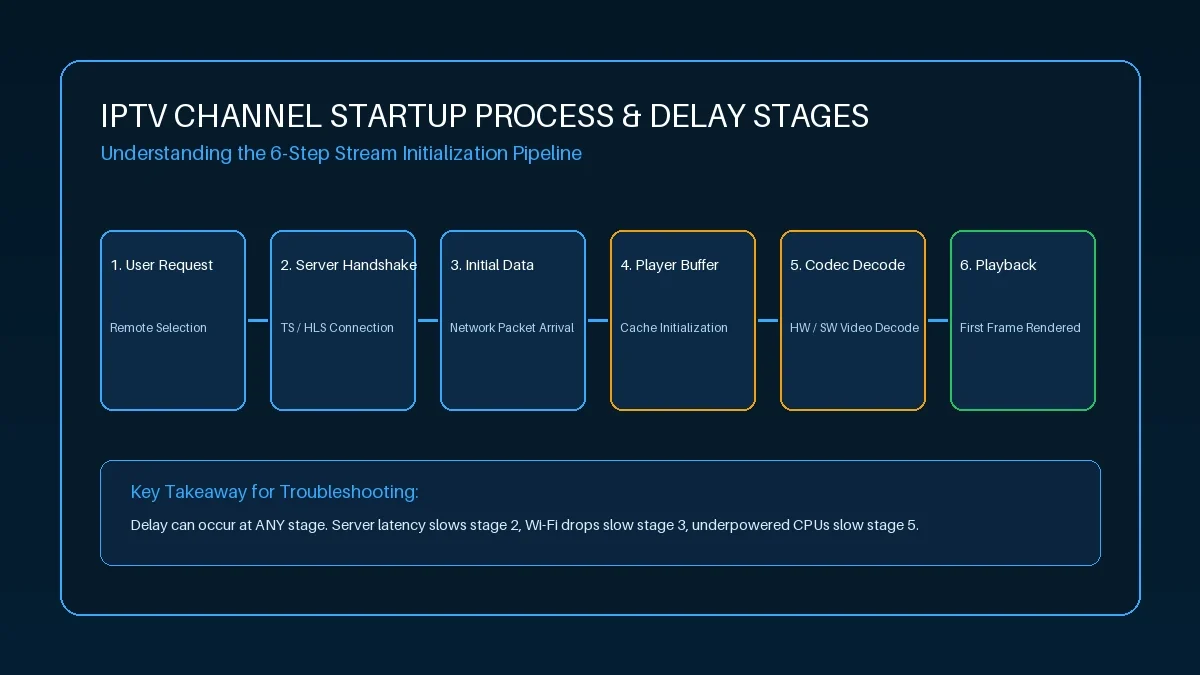 IPTV channel startup and zapping pipeline
Here is the exact 7-stage pipeline executed in the background:
+-----------------------------------------------------------------------+
|                 ANATOMY OF A SUB-SECOND CHANNEL SWITCH                |
+-------+-------------------------+------------------+------------------+
| Stage | Process Description     | Optimized System | Misconfigured    |
+-------+-------------------------+------------------+------------------+
| 1     | Teardown Previous Stream| 10 - 25 ms       | 150 - 300 ms     |
| 2     | DNS Address Resolution  | 5 - 20 ms        | 250 - 800 ms     |
| 3     | TCP / TLS Handshake     | 20 - 50 ms       | 200 - 450 ms     |
| 4     | HTTP GET Stream Request | 30 - 70 ms       | 300 - 600 ms     |
| 5     | Ingestion of I-Frame    | 100 - 400 ms     | 1500 - 3500 ms   |
| 6     | Demuxing & Audio Sync   | 20 - 50 ms       | 200 - 500 ms     |
| 7     | GPU Hardware Rendering  | 50 - 100 ms      | 800 - 2000 ms    |
+-------+-------------------------+------------------+------------------+
| TOTAL | Time to First Pixel     | ~ 235 - 715 ms   | 3400 - 8150 ms   |
+-------+-------------------------+------------------+------------------+
Stage 1: Teardown and Resource Deallocation
The moment you press Channel Up, your media player must command the operating system to flush the active video decoder buffer, close the existing network socket connection to the current channel's server port, and release audio thread locks. On well-coded players like TiviMate, this takes under 25 milliseconds. On bloated apps, background cleanup threads can lag.
Stage 2: DNS Domain Resolution
The player reads the streaming URL for the new channel (e.g., `http://edge-node-04.digitaline-iptv.live:8080/live/...\`). The domain name must be translated into a numerical IP address by your Domain Name System (DNS) resolver. If your router uses slow, unoptimized default ISP DNS servers, this single lookup can stall your zapping speed by up to 500ms before a single packet is even requested!
Stage 3: TCP Connection & TLS Security Handshake
Your device initiates a standard Transmission Control Protocol (TCP) three-way handshake (SYN, SYN-ACK, ACK) with the edge server node. If the connection utilizes HTTPS, a TLS handshake follows to exchange cryptographic certificates and negotiate encryption keys.
Stage 4: HTTP GET & Server Token Validation
The player transmits an HTTP GET request containing your subscription username, password hash, and the requested channel stream ID. The provider's load balancer verifies that your account is active, checks concurrent connection limits, and directs your socket to the active media ingestion transponder.
Stage 5: Ingestion of the Keyframe (I-Frame)
This is where the vast majority of zapping delay occurs. Video compression codecs (such as H.264 and HEVC) do not transmit full standalone pictures on every frame. Instead, they transmit a full reference image—known as an Intra-coded frame (I-Frame) or Keyframe—followed by hundreds of partial differential frames (P-frames and B-frames) that only store pixel changes.
- A video decoder cannot render anything on your screen until it receives a full I-Frame.
- If a provider encodes their stream with a Keyframe interval of 4 seconds, and your player connects 0.2 seconds after an I-Frame has just passed, the player must discard all incoming data and wait up to 3.8 seconds just for the next I-Frame to arrive!
Stage 6: Demuxing & Presentation Timestamp (PTS) Synchronization
Once the I-Frame arrives, the player's demuxer separates the elementary video and audio bitstreams, extracts the Presentation Time Stamps (PTS), and calculates the synchronization offset between spoken commentary and visual movement.
Stage 7: Hardware Decoding and Display Presentation
The video packets are passed to your device's graphics processing unit (GPU). The hardware decoder decompresses the video frame, upscales or formats the image to your television's display resolution, and flips the display buffer to present the live broadcast on your screen.
2. Root Cause 1: Player Buffer Sizing (The False Safety Net)
The most common self-inflicted cause of slow channel switching is an improperly configured playback buffer size inside your IPTV application settings.
Many users suffering from occasional stream stutter make the mistake of navigating into their player settings (such as TiviMate, IPTV Smarters, or XCIPTV) and changing their Buffer Size setting from "Normal" to "Large" or "Very Large" (often 5 to 10 seconds).
+-----------------------------------------------------------------------+
|                    BUFFER SIZE VS. ZAPPING SPEED                      |
+---------------------+-----------------------+-------------------------+
| Buffer Setting      | Buffer Duration (Sec) | Average Zapping Speed   |
+---------------------+-----------------------+-------------------------+
| None                | 0.0 seconds           | 0.5 - 0.8 seconds       |
| Small (Recommended) | 1.0 - 1.5 seconds     | 1.0 - 1.4 seconds       |
| Normal              | 2.5 - 3.0 seconds     | 2.2 - 3.0 seconds       |
| Large               | 5.0 - 8.0 seconds     | 5.0 - 8.5 seconds       |
| Very Large          | 10.0+ seconds         | 10.0 - 14.0 seconds     |
+---------------------+-----------------------+-------------------------+
The Mathematical Trap of Oversized Buffers
When you configure an IPTV player buffer to "Large (5 seconds)", you are instructing the playback engine:
"Do not display a single pixel of video on my screen until you have downloaded, processed, and held a minimum of 5 continuous seconds of future video packets in RAM memory."
Even if your internet connection is a blazing-fast 1 Gbps fiber optic line, the server delivers live broadcast packets in near real-time. Downloading 5 seconds of a live broadcast requires substantial network pre-fetching. Until that 5-second RAM threshold is filled, your screen remains completely black.
The Optimal Buffer Solution:
- If you have a stable broadband connection connected via Ethernet or clean 5GHz Wi-Fi, set your buffer size to Small (1 second) or Normal.
- A 1-second buffer provides more than enough safety margin to absorb transient network jitter while cutting your channel zapping delay to near-instantaneous levels.
3. Root Cause 2: MPEG-TS vs. HLS (.m3u8) Streaming Protocols
The underlying delivery protocol used by your IPTV service plays a massive role in startup latency.
In modern IPTV, streams are primarily delivered via two protocols:
+-----------------------------------------------------------------------+
|                    MPEG-TS VS. HLS STREAMING PROTOCOLS                |
+--------------------------+---------------------+----------------------+
| Feature                  | MPEG-TS Stream      | HLS (.m3u8) Stream   |
+--------------------------+---------------------+----------------------+
| Data Transmission        | Continuous stream   | Discrete chunk files |
| Chunk / Segment Size     | None (raw packets)  | 2 to 6 seconds each  |
| Latency to Real-Time     | 3 - 6 seconds       | 15 - 35 seconds      |
| Typical Zapping Delay    | 0.8 - 1.5 seconds   | 3.0 - 6.0 seconds    |
| Protocol Overhead        | Minimal             | High HTTP overhead   |
+--------------------------+---------------------+----------------------+
1. MPEG-TS (Transport Stream - `.ts`)
MPEG-TS is a continuous packetized delivery format originally engineered for digital broadcast television. When your player requests an MPEG-TS stream from a server, the server immediately begins pumping raw 188-byte transport stream packets down the open TCP pipe.
- The player demuxes and decodes packets the microsecond they arrive.
- Channel switching with MPEG-TS is exceptionally fast, making it the preferred protocol for live sports and interactive television.
2. HLS (HTTP Live Streaming - `.m3u8`)
HLS operates fundamentally differently. Instead of a continuous stream, the server slices the live broadcast into separate video files (called chunks or segments), typically 2, 4, or 6 seconds in duration. The server maintains an index text file called an `.m3u8` playlist.
- When you switch to an HLS channel, your player must first fetch the `.m3u8` manifest file, parse the playlist to locate the newest chunk, send a secondary HTTP request to download the complete chunk file, and then begin playback.
- Because the player must download a full segment before rendering, HLS introduces an unavoidable baseline zapping delay of 3 to 6 seconds.
At Digitaline IPTV, our server architecture serves high-speed MPEG-TS direct stream pipes natively across Xtream Codes API connections, ensuring subscribers enjoy ultra-fast channel zapping without HLS segment delays.
4. Root Cause 3: Video Decoder Mismatches (Hardware vs. Software)
Your streaming device's processor is not designed to decompress high-definition video using raw CPU compute power. Video decoding requires specialized mathematical matrix operations best handled by dedicated hardware silicon.
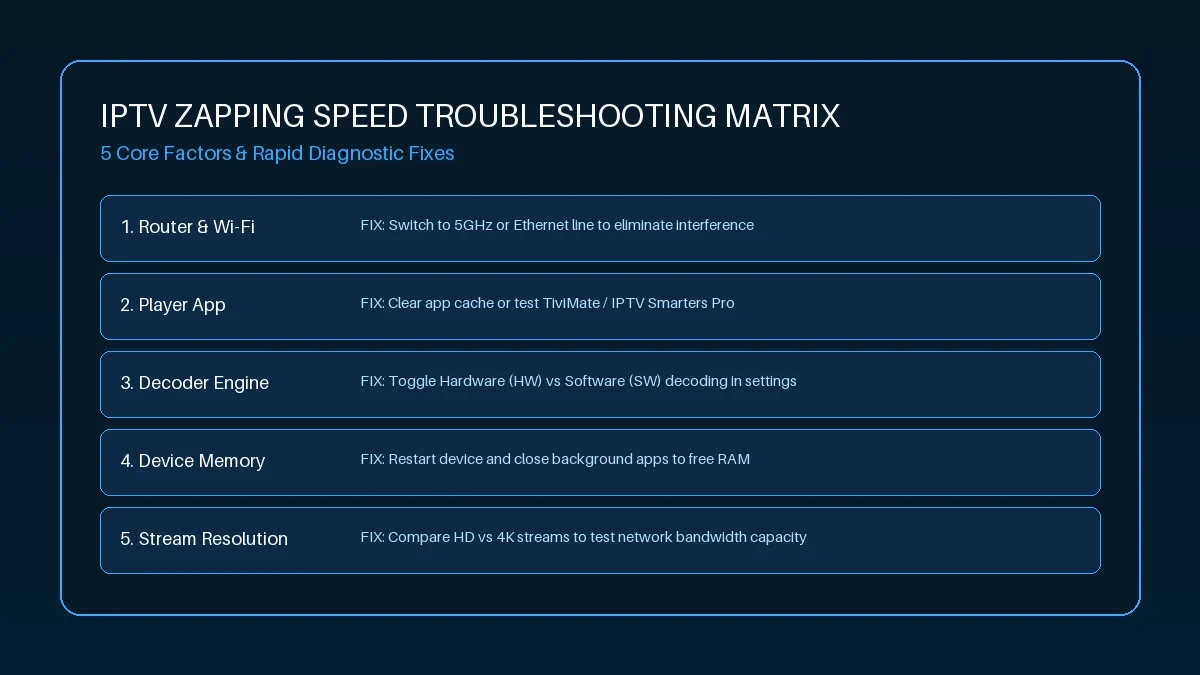 IPTV channel zapping and video decoder troubleshooting
Inside your IPTV player application settings (e.g., TiviMate -> Settings -> Playback -> Video Decoder), you will find options for Hardware (HW), Hardware+ (HW+), and Software (SW):
Why Software (SW) Decoding Destroys Zapping Speed:
- When Software decoding is enabled, the player relies on CPU software libraries (such as FFmpeg) running on general-purpose ARM processor cores.
- When you switch to a high-bitrate 1080p 60fps channel, the CPU is suddenly inundated with millions of decompression calculations. On budget streaming sticks (like the Amazon Fire TV Stick Lite or Xiaomi Mi Box), the CPU spikes to 100% utilization, enters a thermal throttling state, and takes 3 to 5 seconds just to initialize the frame decoding loop.
Why Hardware (HW) Decoding Delivers Instant Zapping:
- Hardware decoding sends the compressed stream directly to the dedicated silicon video processor (such as the Mali GPU or PowerVR graphics core).
- The hardware decoder initializes in less than 50 milliseconds, effortlessly rendering the first I-Frame the instant it arrives.
Always ensure your player's Video Decoder is set to Hardware (HW). Reserve Software (SW) strictly as a temporary troubleshooting tool if a specific channel has audio but no picture. For a deeper technical guide on decoder configurations, see our guide on fixing IPTV black screen with audio working.
5. Root Cause 4: DNS Lookup Latency & Server Peering Delays
Every single time your IPTV player changes the channel, it must query a Domain Name System (DNS) server to resolve the provider's server hostname into an IP address.
Most households never modify their home router's default DNS settings. Consequently, their streaming devices automatically use their local Internet Service Provider's (ISP) default DNS servers.
+-----------------------------------------------------------------------+
|                    DNS LOOKUP LATENCY COMPARISON                      |
+--------------------------+---------------------+----------------------+
| DNS Provider             | Average Lookup Time | Zapping Impact       |
+--------------------------+---------------------+----------------------+
| Standard ISP DNS         | 80 - 250 ms         | Noticeable lag       |
| Congested / Filtered DNS | 300 - 800 ms        | Severe delay         |
| Google DNS (8.8.8.8)     | 15 - 30 ms          | Fast and responsive  |
| Cloudflare DNS (1.1.1.1) | 8 - 18 ms           | Near-instantaneous   |
+--------------------------+---------------------+----------------------+
The ISP DNS Bottleneck:
- Standard ISP DNS servers are often slow, congested, and geographically centralized, requiring long network round-trip hops.
- Worse, many major ISPs deploy DNS-level filtering or rate-limiting on streaming domains during weekend sports fixtures. If your streaming device waits 400 milliseconds just to resolve the domain name, your zapping speed is crippled before any video data even begins to transfer.
The Solution: Switch to High-Performance Public Resolvers
By configuring your streaming device or home router to utilize Cloudflare Public DNS or Google Public DNS, you shave hundreds of milliseconds off every single channel switch.
Recommended DNS Addresses:
- Cloudflare (Fastest & Privacy-Focused):
- Primary DNS: `1.1.1.1`
- Secondary DNS: `1.0.0.1`
- Google Public DNS:
- Primary DNS: `8.8.8.8`
- Secondary DNS: `8.8.4.4`
6. Root Cause 5: Xtream Codes API vs. Massive Static M3U Playlists
How your channel list is imported into your player has a dramatic impact on app responsiveness and channel switching agility.
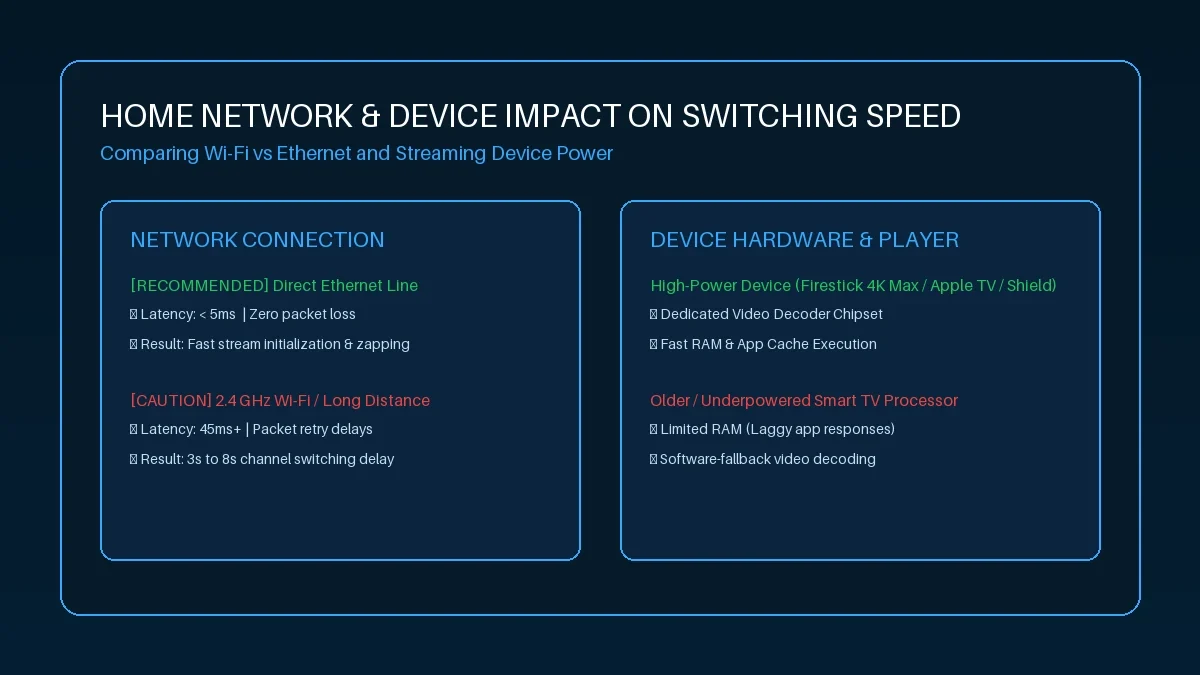 Optimizing home network and zapping speed
The Static M3U Playlist Drag:
When you load an IPTV subscription using a traditional M3U playlist URL, you are downloading a single massive text file containing 20,000 to 50,000 raw lines of text.
- Every time you zap channels, low-powered streaming devices must search through a multi-megabyte plain text array stored in RAM to locate stream headers and EPG guide cross-references.
- On streaming sticks with only 1GB of RAM, this causes micro-freezes and garbage collection pauses that directly delay channel initialization.
The Xtream Codes API Advantage:
The Xtream Codes API replaces static text files with structured, lightweight database requests:
- The player queries only the specific channel ID being requested.
- Memory consumption is reduced by over 80%, leaving device RAM completely free for video caching and hardware decoder buffer management.
All Digitaline IPTV subscriptions feature native Xtream Codes API integration to ensure maximum agility across all player apps.
7. App-by-App Zapping Optimization Walkthrough
Different player applications store their performance settings under various menus. Follow these precise navigation paths for your specific software:
1. TiviMate IPTV Player (Firestick / Android TV)
- Buffer Size: Go to Settings -> Playback -> Buffer size -> Set to Small (1s).
- Video Decoder: Go to Settings -> Playback -> Video decoder -> Set to Hardware.
- Audio Decoder: Go to Settings -> Playback -> Audio decoder -> Set to Hardware.
- AFT Frame Rate: Set to Auto Frame Rate (AFR) -> ON only if your TV switches quickly, or OFF if HDMI handshakes cause a 2-second screen blink on each channel change.
2. IPTV Smarters Pro (Multi-Platform)
- Player Selection: Go to Settings -> Player Selection.
- Change the default player for Live TV from Built-In to Hardware Decoder or ExoPlayer.
- Stream Format: Under Settings -> Stream Format, switch from Default (HLS) to MPEG4 (.ts). This forces Smarters to draw direct transport streams rather than segmented chunks.
3. XCIPTV Player (Android / Firestick)
- Player Settings: Open Settings -> Player Settings.
- Set Live TV Player to ExoPlayer.
- Under ExoPlayer Settings, toggle Hardware Acceleration to ON.
- Set Playback Buffer to Low Buffer (1000ms).
4. IBO Player (Samsung & LG Smart TVs)
- Launch IBO Player on your TV and open the Settings gear icon.
- Locate Player Engine and verify it is set to System Native Player (HW).
- Under Stream Buffer Type, select Fast Zapping Mode if available.
5. iPlayTV & UHF (Apple TV 4K)
- In iPlayTV settings, locate Playback Engine.
- Ensure Hardware AVPlayer is selected.
- Under Cache Duration, adjust the playback cache slider to 1.0s.
8. Wi-Fi Channel Congestion and Channel Width (20MHz vs 80MHz)
If you are streaming wirelessly, local radio interference can introduce 300 to 600 milliseconds of packet arrival delay, wrecking your zapping speed.
+-----------------------------------------------------------------------+
|                    WI-FI CHANNEL WIDTH COMPARISON                     |
+------------------+---------------------+------------------------------+
| Band & Width     | Throughput          | Interference & Jitter Level  |
+------------------+---------------------+------------------------------+
| 2.4GHz (20MHz)   | 40 - 75 Mbps        | Extreme (Congested, High Jitter)|
| 5GHz (20MHz)     | 80 - 150 Mbps       | Ultra-Low (Cleanest Jitter)  |
| 5GHz (40/80MHz)  | 300 - 650 Mbps      | Fast Throughput, Low Jitter  |
| 5GHz (160MHz DFS)| 1 Gbps+             | Radar interference drops     |
+------------------+---------------------+------------------------------+
Eliminating Co-Channel Wireless Interference:
- Never use the 2.4GHz band for your primary television. In suburban neighborhoods or apartment buildings, dozens of neighboring routers compete on channels 1, 6, and 11, causing packet collisions that force re-transmissions.
- Switch to 5GHz with 40MHz or 80MHz channel width. This provides hundreds of megabits of clean throughput with minimal packet contention.
- Avoid DFS (Dynamic Frequency Selection) Channels (52–144) if you live near an airport or weather radar installation, as consumer routers will automatically mute transmission for up to 60 seconds when radar pulses are detected.
9. Hardware Capabilities: Streaming Sticks vs. Dedicated TV Boxes
While software optimization works wonders, physical hardware constraints cannot be ignored. A 6-year-old budget streaming stick cannot process high-bitrate video as rapidly as a modern, high-spec streaming media box.
+-----------------------------------------------------------------------+
|                 DEVICE HARDWARE IMPACT ON ZAPPING SPEED               |
+-----------------------+---------------------+-------------------------+
| Device Model          | RAM & Processor     | Typical Zapping Latency |
+-----------------------+---------------------+-------------------------+
| Fire TV Stick Lite    | 1GB RAM / Quad Core | 2.5 - 4.5 seconds       |
| Fire TV Stick 4K Max  | 2GB RAM / Fast GPU  | 1.0 - 1.5 seconds       |
| Chromecast with GTV   | 2GB RAM / Quad Core | 1.2 - 1.8 seconds       |
| Apple TV 4K (A15)     | 4GB RAM / 6-Core    | 0.6 - 1.0 seconds       |
| NVIDIA Shield TV Pro  | 3GB RAM / Tegra X1+ | 0.5 - 0.9 seconds       |
+-----------------------+---------------------+-------------------------+
Why Device RAM & GPU Matter for Zapping:
- Instant Frame Decompression: High-end chipsets (like the NVIDIA Tegra X1+ or Apple A15 Bionic) can unpack, decode, and render an incoming H.265 I-Frame in less than 20 milliseconds.
- Bus Bandwidth: Premium boxes feature high-bandwidth internal memory architectures capable of routing 4K 60fps video packets directly from the network interface controller (NIC) to the GPU display buffer without CPU bottlenecks.
If you are using an entry-level streaming stick and desire instantaneous zapping, upgrading to an Amazon Fire TV Stick 4K Max or NVIDIA Shield TV Pro provides a massive leap in responsiveness. Read our guide to the best IPTV players and hardware for in-depth hardware recommendations.
Experience Digitaline IPTV
Upgrade your entertainment with ultra-stable, anti-freeze streaming. Access premium live channels, global sports, and curated VOD across all your supported devices.
10. Systematic Troubleshooting Decision Tree
When zapping delay remains above 3 seconds after baseline configuration, follow this diagnostic decision tree to pinpoint the exact failure point:
[Is Zapping Delay Greater Than 3.0 Seconds?]
                      |
        +-------------+-------------+
        |                           |
[Test 1: Check Buffer Size]         |
        |                           |
Is it set to "Large"?               |
  --> YES: Set to "Small" (1s)      |
  --> NO: Proceed to Test 2         |
                                    |
[Test 2: Check Stream Protocol]     |
        |                           |
Is stream URL ending in .m3u8?      |
  --> YES: Switch to MPEG-TS (.ts)  |
  --> NO: Proceed to Test 3         |
                                    |
[Test 3: Check DNS Latency]         |
        |                           |
Is device using default ISP DNS?    |
  --> YES: Switch to 1.1.1.1        |
  --> NO: Proceed to Test 4         |
                                    |
[Test 4: Check Video Decoder]       |
        |                           |
Is Decoder set to Software (SW)?    |
  --> YES: Force Hardware (HW)      |
  --> NO: Connection is Hardware-Limited
11. Benchmarking Your Channel Zapping Speed
Once you have implemented the optimizations in this guide, benchmark your channel switching performance:
+-----------------------------------------------------------------------+
|                    ZAPPING SPEED PERFORMANCE SCALE                    |
+--------------------------+---------------------+----------------------+
| Zapping Time             | Performance Tier    | Assessment           |
+--------------------------+---------------------+----------------------+
| Under 1.0 second         | Elite / Broadcast   | Perfect optimization |
| 1.0 to 1.8 seconds       | Excellent           | Typical for high-res |
| 2.0 to 3.5 seconds       | Average / Fair      | Acceptable, can tune |
| 4.0 to 6.0 seconds       | Poor / Sluggish     | Needs optimization   |
| Over 6.0 seconds         | Unacceptable        | Severe configuration |
+--------------------------+---------------------+----------------------+
Using a standard stopwatch or phone timer, record the time from pressing Channel Up to the moment video and audio are playing smoothly. With Digitaline IPTV paired with TiviMate on an Ethernet-connected device, you should consistently achieve zapping times between 0.8 and 1.4 seconds.
12. Frequently Asked Questions
Why does channel switching take over 5 seconds on my IPTV setup?
Channel switching delays exceeding 5 seconds are typically caused by one of three issues: an oversized player buffer setting (such as "Large" or 5–10 seconds), using an HLS (.m3u8) playlist rather than an MPEG-TS Xtream Codes connection, or slow DNS lookup latency from default ISP resolvers. Adjusting your buffer to "Small" and switching to Cloudflare DNS (`1.1.1.1`) resolves this in most cases.
Does a faster internet connection speed up channel zapping?
Up to a point. If your connection is below 15 Mbps, increasing your speed to 50 Mbps will noticeably improve channel switching. However, if you already possess a 100 Mbps or 500 Mbps connection, increasing to 1 Gbps will not make zapping any faster. Beyond 50 Mbps, zapping speed is determined by network latency (ping), DNS lookup speed, and video decoder efficiency rather than raw bandwidth.
What is the difference between MPEG-TS and HLS for channel switching?
MPEG-TS is a continuous stream format that pumps video packets immediately over an open connection, allowing players to begin decoding in under 1 second. HLS breaks video into separate 2 to 6-second chunk files; the player must download an entire chunk before playing, creating an unavoidable 3 to 6-second delay on every channel change.
How does the Keyframe (I-Frame) interval affect zapping time?
A video decoder cannot render a picture until it receives a full Intra-frame (I-Frame). If an IPTV provider configures their broadcast encoders with a 3-second Keyframe interval, the player must wait anywhere from 0.1 to 3.0 seconds after connecting just for an I-Frame to arrive. Premium providers use short 1 to 2-second keyframe intervals to minimize zapping wait times.
Why does TiviMate zap channels faster than IPTV Smarters?
TiviMate is built on an exceptionally optimized, low-overhead implementation of Google's ExoPlayer framework with streamlined socket teardown and direct GPU pipeline bridges. IPTV Smarters uses a heavier application wrapper that executes additional database and UI rendering checks during channel switches, adding a slight computational delay.
Can a VPN slow down my IPTV channel switching speed?
Yes, a VPN can add 20 to 100 milliseconds of latency to connection handshakes due to cryptographic encryption overhead and routing through intermediary VPN server locations. If you use a VPN, always connect to the geographically closest server node and utilize high-speed modern protocols like WireGuard rather than older, slower OpenVPN TCP protocols.
What buffer size should I choose for the fastest zapping?
Select Small (1 second) or None (0 seconds). A Small buffer provides the best balance between lightning-fast channel switches and protection against minor Wi-Fi jitter. Avoid setting your buffer to Large unless your internet connection is severely unstable.
Does device hardware affect channel switching time?
Significantly. High-end devices like the NVIDIA Shield TV Pro or Apple TV 4K possess powerful multi-core processors and fast GPU hardware decoders that initialize the video decompression pipeline in under 50ms. Budget streaming sticks with slow processors take significantly longer to initialize video decoding.
13. Final Thoughts: Enjoying Cable-Fast Channel Surfing
There is no reason to tolerate agonizing 5-second black screens when switching channels on modern IPTV. By understanding the underlying mechanics of video packet ingestion, keyframes, buffer allocation, and DNS routing, you can easily fine-tune your setup to achieve the instant, responsive channel surfing experience you deserve.
To recap the most impactful optimizations:
- Set your player buffer to Small (1 second).
- Lock your video decoder to Hardware (HW).
- Switch your DNS resolvers to Cloudflare (`1.1.1.1`).
- Use Xtream Codes API with an MPEG-TS stream provider.
- Connect your device via physical Ethernet.
Ready to experience instant, sub-second channel zapping backed by enterprise European and North American CDN infrastructure? Explore our subscription plans on our Digitaline IPTV pricing page, or visit our installation section for complete device configuration tutorials today.